

Before you begin
Have your documents ready that you'll need for your claim:
- Current pay slips for all of your current employers, showing your ordinary pay (hourly rate of pay).
- Recent bank statement showing the BSB, account name and account number.
- If you're claiming portable long service leave, the portable long service leave employer approval form.
You may use your smartphone to take a photo of these documents, or you can scan and upload them to your computer.
Your employer should be able to provide your Worker ID.
If you are unable to contact your employer, you can submit a request online for your Worker ID to be sent to you. You can also contact us by calling 1800 517 158(opens in a new window) or emailing enquiries@plsa.vic.gov.au(opens in a new window)
View our guide on how to register for the worker portal.
Start your claim
1. Log in to the worker portal(opens in a new window) using your email or Worker ID.
If you don't know your Worker ID, you can submit a request online for your Worker ID to be sent to you.
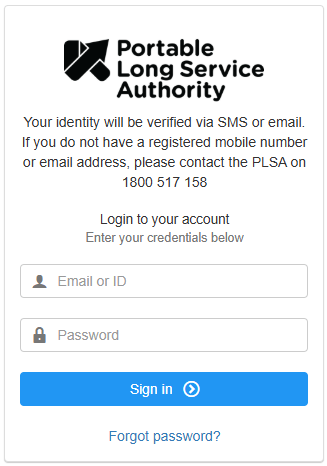
To protect your information, we have added multi-factor authentication to the worker portal. A security code will be sent to your mobile phone or email each time you log in to verify your identity.
You need a mobile phone number or email address registered with the Authority to log in. Please call us on 1800 517 158 if you need to update or add your contact details.
2. Welcome to the worker portal.
Dashboard - displays your personal details and your recognised service balance.

Click on the image above to enlarge it.
Contributions - this shows a summary of your service reported by your employers to the Authority.

Click on the image above to enlarge it.
My Details - check and update your personal details, addresses, passwords and security questions.

Click on the image above to enlarge it.
Correspondence - view records of correspondence between you and the Authority, including documents that you have uploaded.

Click on the image above to enlarge it.
I Want To - if you’re missing work hours, complete the Missing Service claim form under this tab.

Click on the image above to enlarge it.
3. From your dashboard, select ‘Claims’ on the left side.
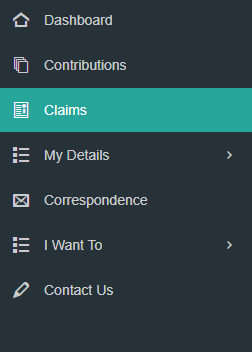
4. Begin a ‘New Claim’.
When you are eligible to make a claim, you will see a 'New Claim' button in the top right corner of the screen.

Click on the image above to enlarge it.
5. Check and confirm your details.
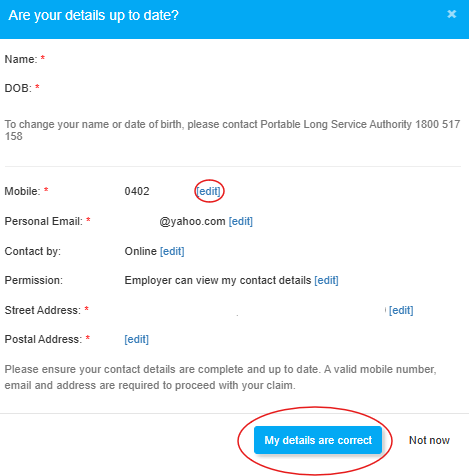
Please check your:
- Mobile phone number
- Email address
- Address
If you need to update your details, you can edit them in this section. Once your details are correct, click on the ‘My details are correct’ button.
The Authority collects personal information that the Act, privacy and other laws authorise it to collect and that it needs to perform its functions in administering the Portable Long Service Benefits Scheme. View the PLSA Privacy policy for further information.
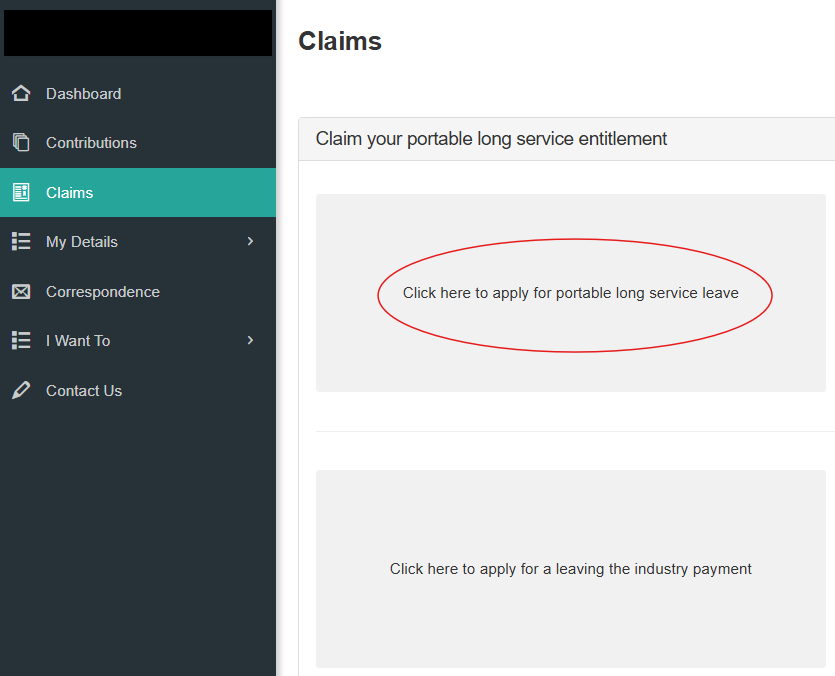
6. If you are taking leave, select ‘apply for portable long service leave’.
There are two types of claim options:
- Select the first option to apply for portable long service leave.
- Select the second option if you're leaving your industry permanently and want to claim a payment.
7. Add your work schedule(s) for your current employers.
You only need to provide your usual working pattern for a typical week – not the details for every week of leave you are claiming.

Click on the image above to enlarge it.
- From the Work Schedule drop-down, select the current employer you are claiming portable long service leave from.
- Enter your work hours and the days you work based on a typical week. For days that you don’t work, leave those days blank. The minimum leave claim is one full day.
- Enter your ordinary pay (hourly rate of pay) for each day worked.
- Review the automatically calculated Hours per week, Days per week, and Employer hourly rate.
- Use those calculations to complete Total hours claiming with this employer and Total days claiming with this employer. You need to ensure you are taking at least one day of leave with this employer.
You must add a work schedule for all current employers, even if you are not claiming portable long service with them.
For these other employers, enter these hours as ‘0’.
To add another employer work schedule, click the ‘+ add more work schedule’ button and follow the same steps above.
Casual workers
If you are a casual worker without regular hours, you may leave the days-of-the-week fields blank. The minimum leave claim is one full day. For example, if you work 4 hours with Employer 1 in the morning and 4 hours with Employer 2 later that day, you must take leave from both employers to meet the one-day minimum requirement.
We will contact you if we need any further information.
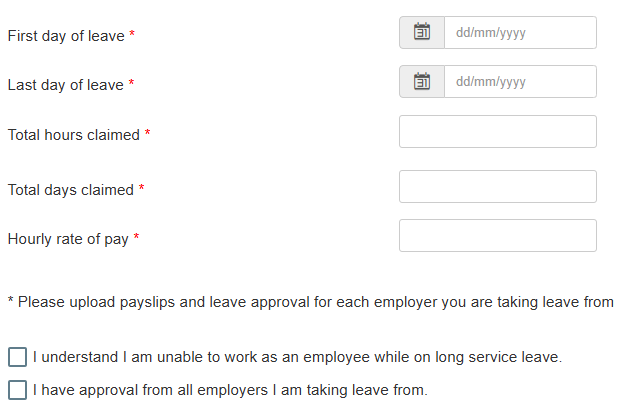
8. Add your leave dates and click on Confirm.
Download the portable long service leave employer approval form to submit later with your claim.
9. Add your Tax File Number and advise if you wish to claim the tax-free threshold.

Click on the image above to enlarge it.
Claiming the tax-free threshold
If you have more than one employer at the same time, you should only claim the tax-free threshold from one employer, usually the one who pays your highest salary or wage.
If you’re unsure, we encourage you to seek independent professional advice on your eligibility to claim the tax-free threshold.
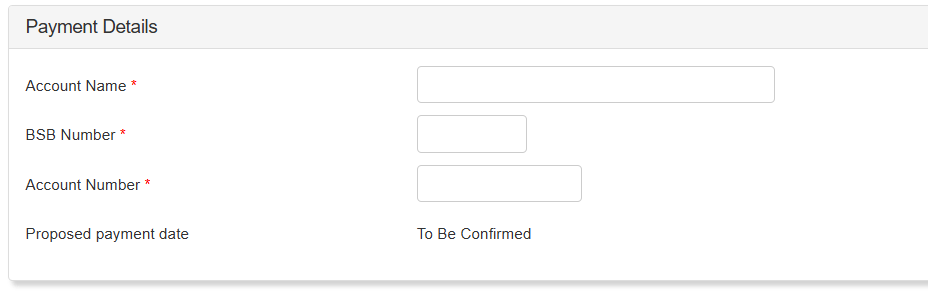
10. Provide your payment details.
Check that you have entered your account details correctly. This will be the account that your claim will be paid into. The Authority is not responsible if incorrect payment details are provided.
11. Add your supporting documents.

Click on the image above to enlarge it.
Upload your supporting documents for each work schedule/employer you have listed.
- Current pay slips for all of your current employers, showing your ordinary pay (hourly rate of pay).
- Recent bank statement showing the BSB, account name and account number.
- Portable long service leave employer approval form.
Uploading your documents
You can use your smartphone to take a photo of these documents or scan and upload them to your computer.
If you are having trouble with uploading your documents, you can contact us on 1800 517 158 or enquiries@plsa.vic.gov.au
12. Review terms and conditions.

Click on the image above to enlarge it.
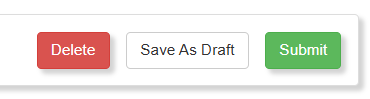
13. Save a draft or submit your claim.
Save a draft of your claim to review and edit again later, or you can submit your claim.
How long does a claim take to be processed?
Claims are usually processed within 3 weeks but some claims can take longer, for example, if you are retiring or leaving the industry permanently. We’ll check your work history, along with the supporting documentation you have provided us. It may take longer if we need more information from yourself or your employer.
Updates on your claim
The status of your claim will become visible in the worker portal once a payment date has been set.
You will also receive a confirmation email from the Authority and a statement once payment is processed.
Your employer will also receive email updates from the Authority as each step of your claim progresses.
A summary and status of your claim can be viewed in the 'Claims' tab.
Your account balance will be updated to reflect the leave you have taken and show the amount of leave you have remaining.
For further assistance in making a claim, please contact us:
Phone: 1800 517 158(opens in a new window)
Email: claims@plsa.vic.gov.au(opens in a new window)
Operating hours: 9 am to 5 pm weekdays, excluding public holidays.
Do you need a translator?
If English is not your first language, our staff can speak to you with the assistance of an interpreting and translation service. This is a free service.
Call toll free on 1800 517 158.(opens in a new window)
Further information
Missing service
What to do if you believe your hours have been incorrectly reported by your employer.
Your Worker ID
Your unique ID for the Portable Long Service Benefits Scheme.
Updated